

Document History
|
Version |
Author |
Reviewer/Approver |
Date of Issue |
Page / Section |
Brief Description |
|---|---|---|---|---|---|
|
1.0 |
Deema Z. |
Asma L. |
23 Apr 2024 |
Accounts |
Approved |
Glossary
|
Term |
Description |
|---|---|
|
Accounts |
Users Management Module |
|
Operational User |
User type that can use SPL system through a web portal |
|
API User |
User type that can use SPL system through APIs |
1. User Management
1.1 View Users
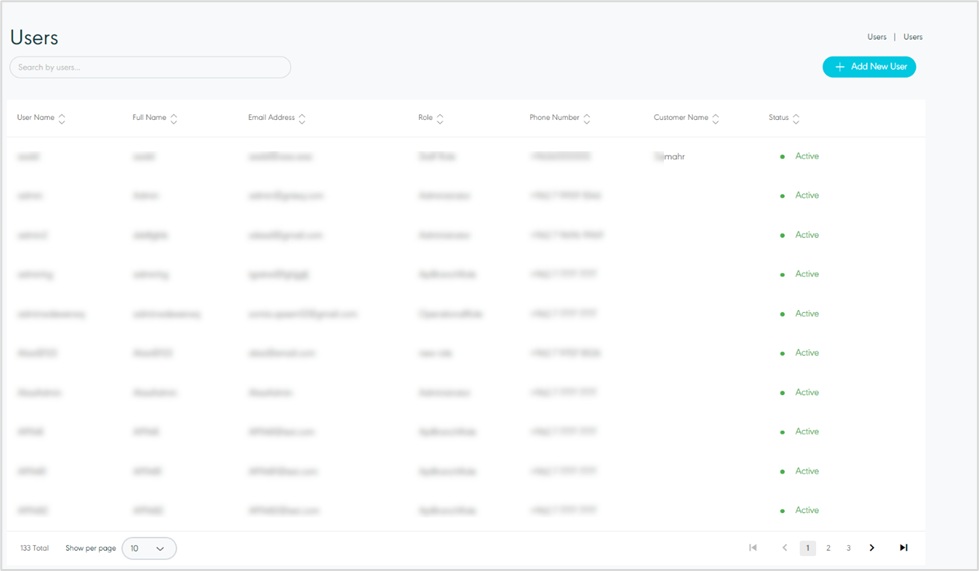
The admin can view the defined users in the system by navigating to the ‘Users’ screen by choosing the Accounts Module from the left navigation panel as follows:
-
Search: the admin can search for the user by typing in the search filter field.
-
Show per page: the admin can select the number of items to show on each page.
-
Add New User: the admin can add a new user by referring to the Add New Users section.
-
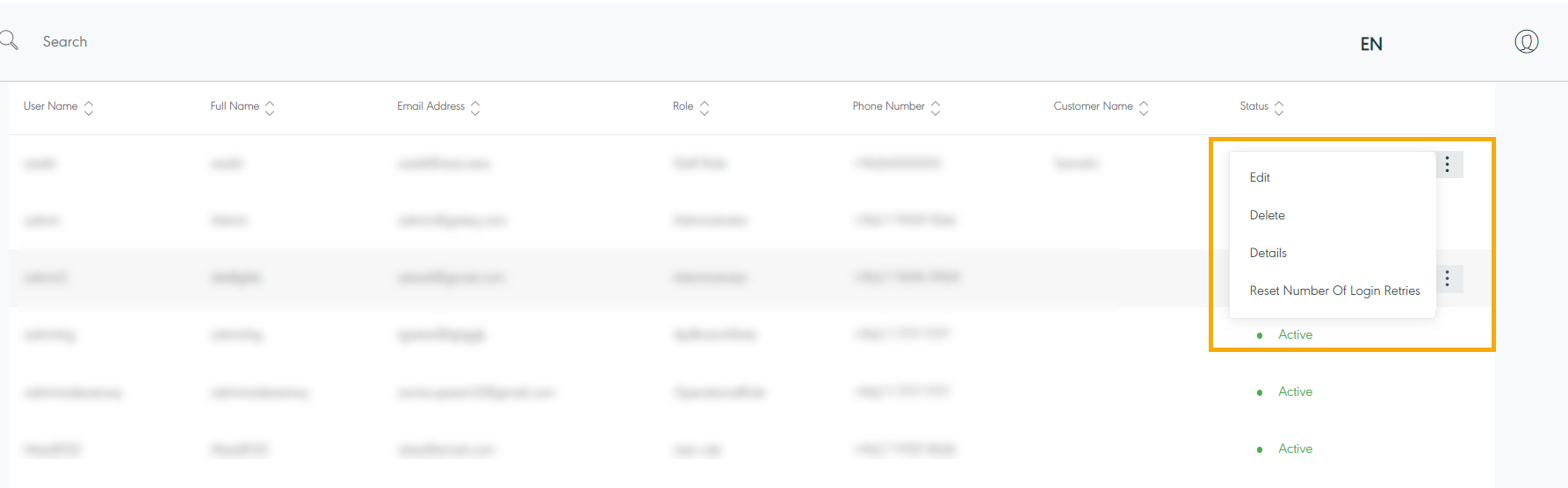
Actions: by clicking on this button the admin can view specific user details by referring to Vier User Details, edit the user by referring to Edit User, or delete user by referring to the Delete User as follows:
1.2 View Users Details
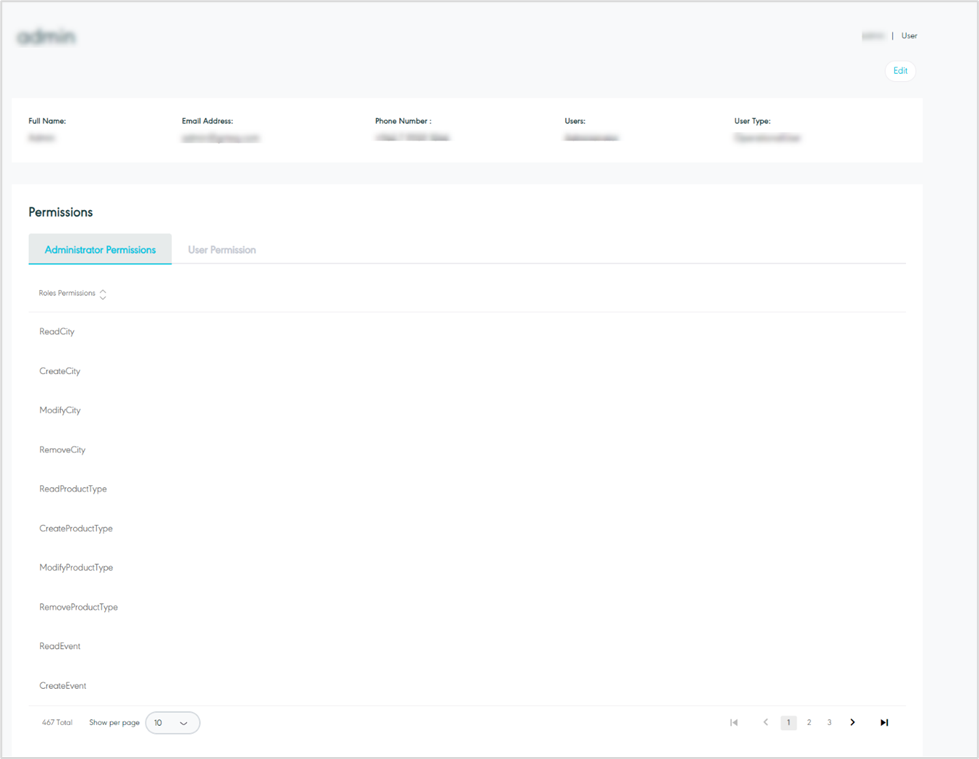
The admin can view the user details by navigating to the ‘Users’ screen via the Accounts Module and clicking on Details from Actions as follows:
-
Administration Permeations
-
Edit: the admin can edit the user information by referring to the Edit User section.
-
Show per page: the admin can select the number of items to show on each page.
-
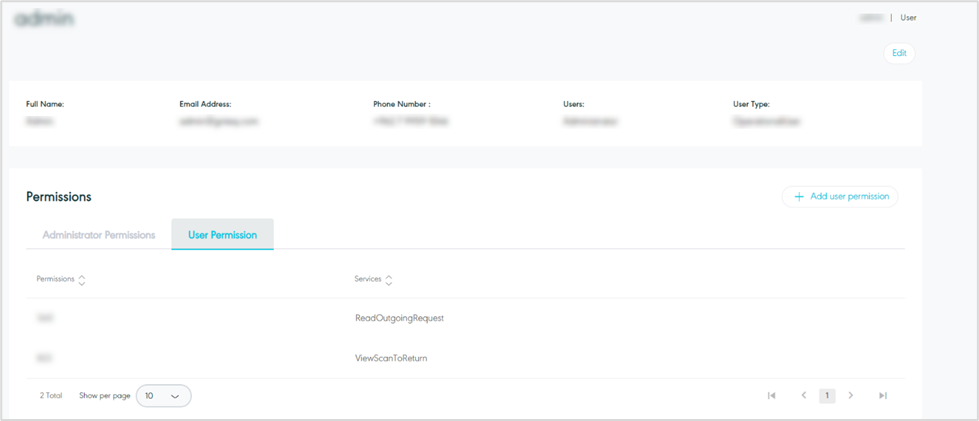
User Permissions
-
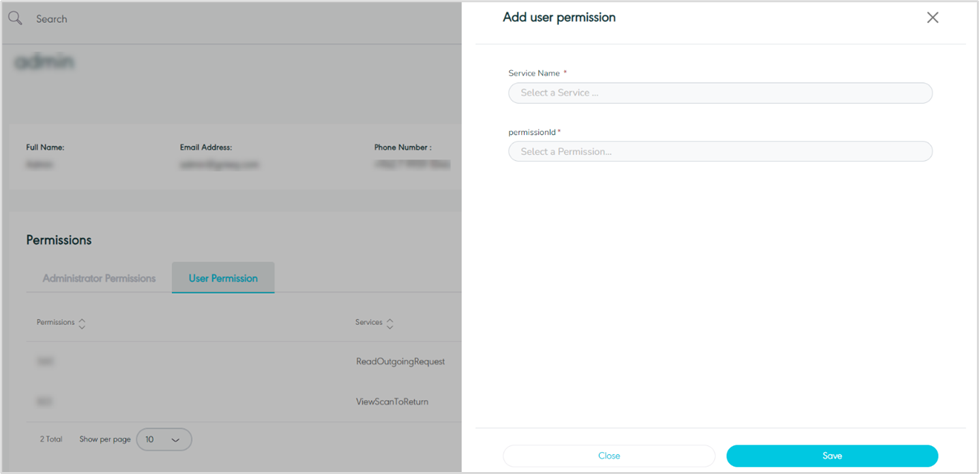
Add New Permission: the admin can assign permission to the user where this permission is not addressed in the related user role group by clicking on the Add New Permission button.
-
Service Name: This field represents the name of the module available in the system, to be selected for assignment to the user.
-
Permission Id: this field represents the section in the module.
By clicking on Save, the system updates and successfully adds new permission to the user.
1.3 Add New User
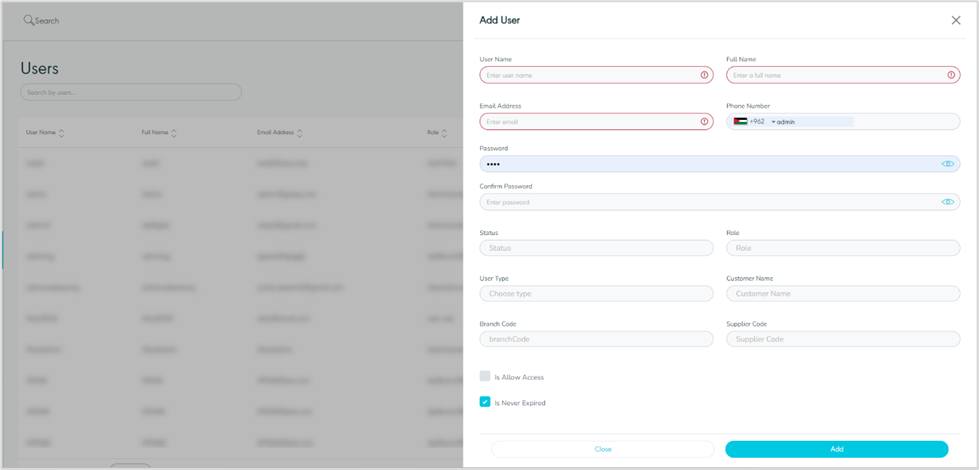
The admin can add a new user by navigating to the ‘Users’ screen via the Accounts Module and clicking on Add New User as follows:
-
Username: this field represents the user’s short name.
-
Full Name: this field represents the user’s full name.
-
Email Address: this field represents the user’s Email address.
-
Phone Number: this field represents the user’s phone number.
-
Password: this field represents the user’s password.
-
Confirm Password: this field represents the user’s confirmed password.
-
Status: this field represents the status where active means that the user is currently functioning with SPL and inactive means that the user is no longer with SPL.
-
Role: this field represents the user’s role.
-
User type: this field represents the user’s user type.
-
Customer Code: this field represents the customer’s code number to which the user will be added.
-
Branch Code: this field represents the branch’s code number to which the user will be added.
-
Is Allow Access: if it is checked, then the user can access the system, it's not for API users.
-
Is Never Expired: if checked then the API user can generate a token, when needed, to access the system.
By clicking on Save, the system adds a new user successfully.
1.4 Edit User
The admin can edit the user information by clicking on Edit from Actions by navigating to the ‘Users’ screen via the Accounts Module as follows:
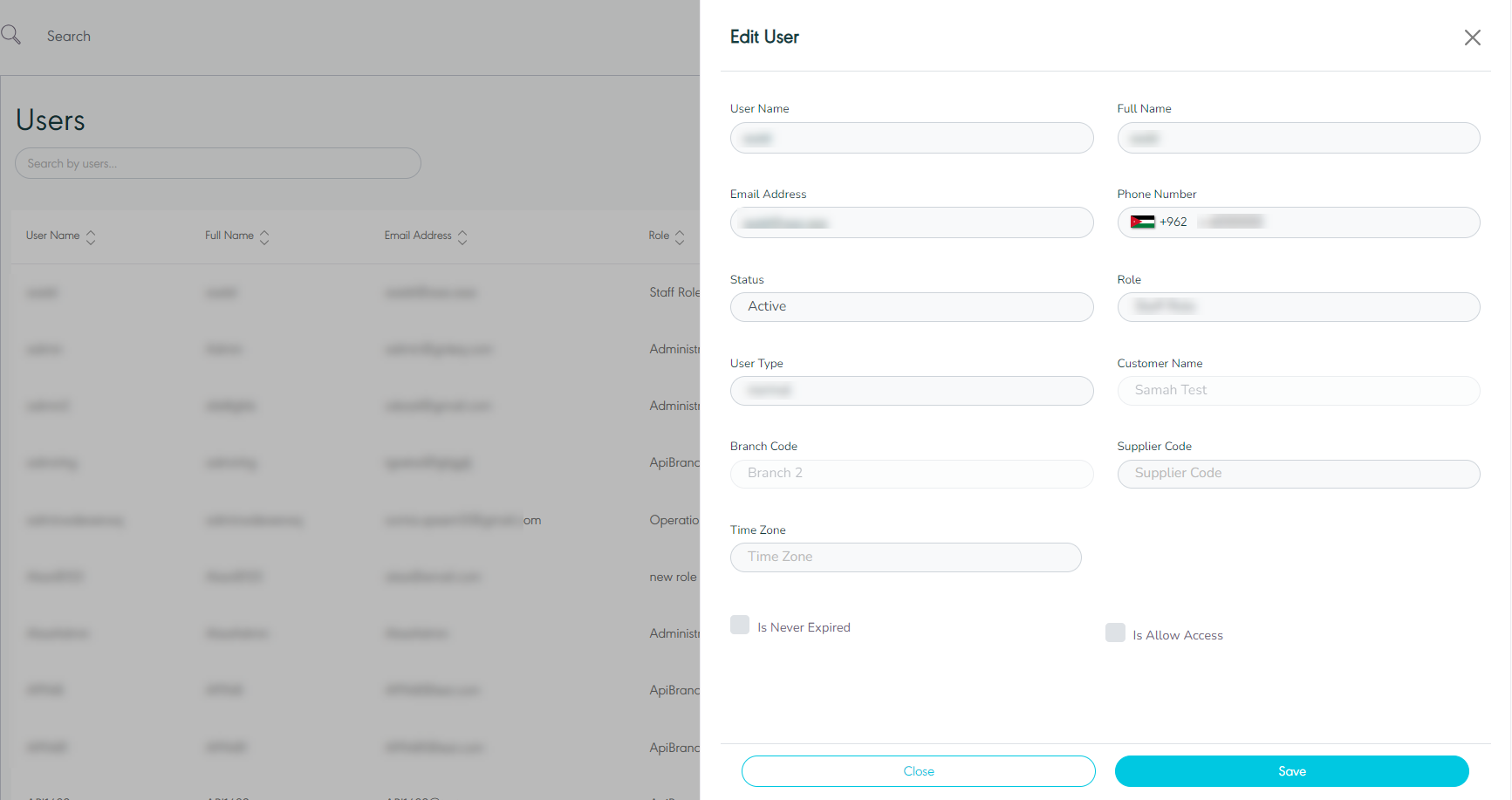
By clicking on Save, the system updates the user successfully.
1.5 Delete User
The admin can delete an existing user by clicking on Delete from Actions by navigating to the ‘Users’ screen via the Accounts Module.
1.6 Reset Number of Login Retries
The user can ensure that the application does not allow an attacker to reset or lockout user’s accounts. - No application lockout mechanism implemented.